
Back up and restore
A backup is a separate file containing the data you export from SynDiary. Keep a copy away from your phone so you can restore your entries if the device is lost or replaced, or the app is uninstalled. The SynDiary team does not keep a server copy it can recover for you.
Choose what to include
Section titled “Choose what to include”| Backup option | File | Contents |
|---|---|---|
| Include original media on | ZIP | Your entries, their connections, and the original photos and audio files available in SynDiary. |
| Include original media off | JSON | Your entries and media references, without the original photos or audio files. |
Choose ZIP with original media if you want to restore photos and recordings as well as entries. A JSON export cannot recover missing media from references alone. Review export warnings in case some items or files could not be included.
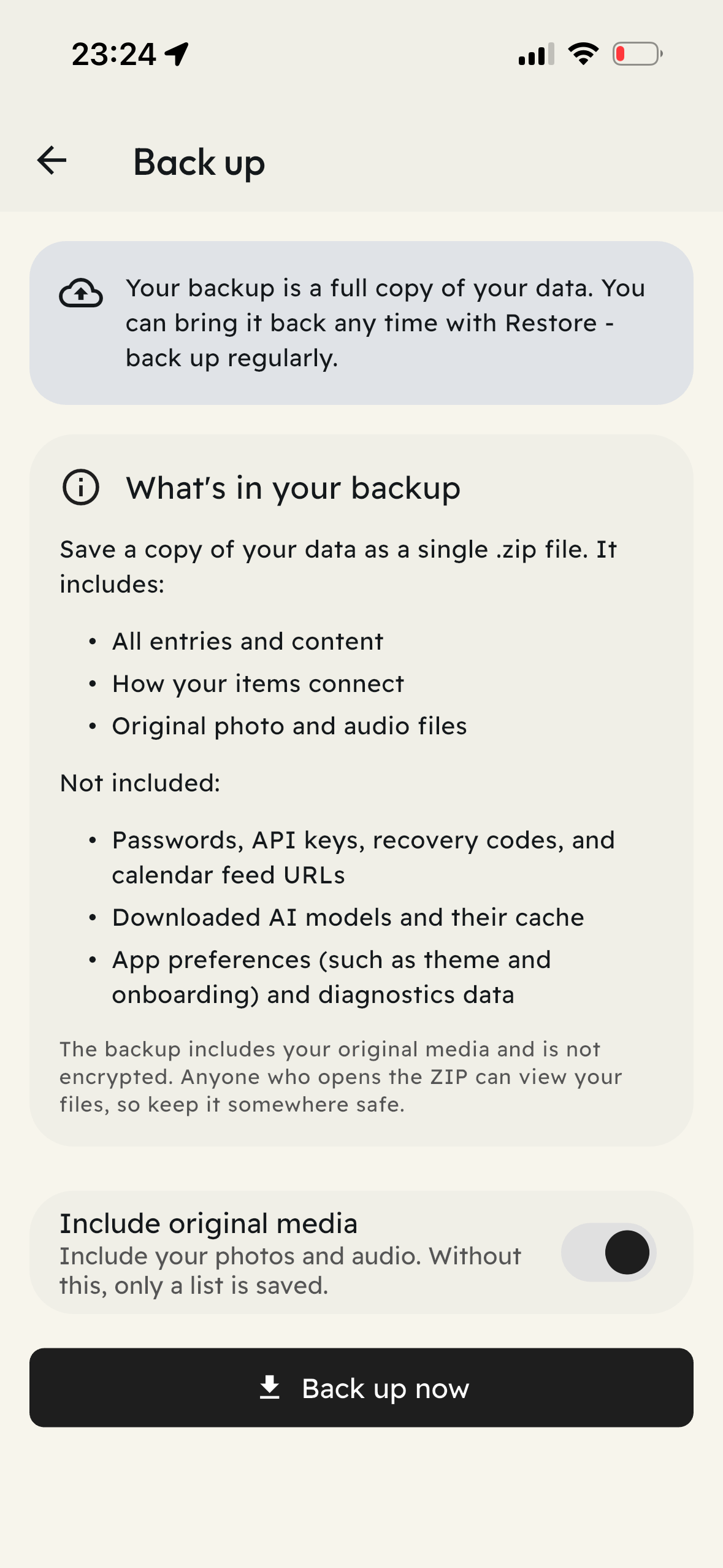
The backup does not include:
- Passwords, API keys, recovery codes, or calendar feed URLs.
- Downloaded AI models or their cache.
- App preferences, such as the theme and onboarding state, or diagnostics data.
Keep any recovery code separately. Be prepared to configure your preferences, reconnect services, and download AI models again on a new device.
Create and save a backup
Section titled “Create and save a backup”1. Open Back up
Section titled “1. Open Back up”Go to Settings → Back up & Restore → Back up.
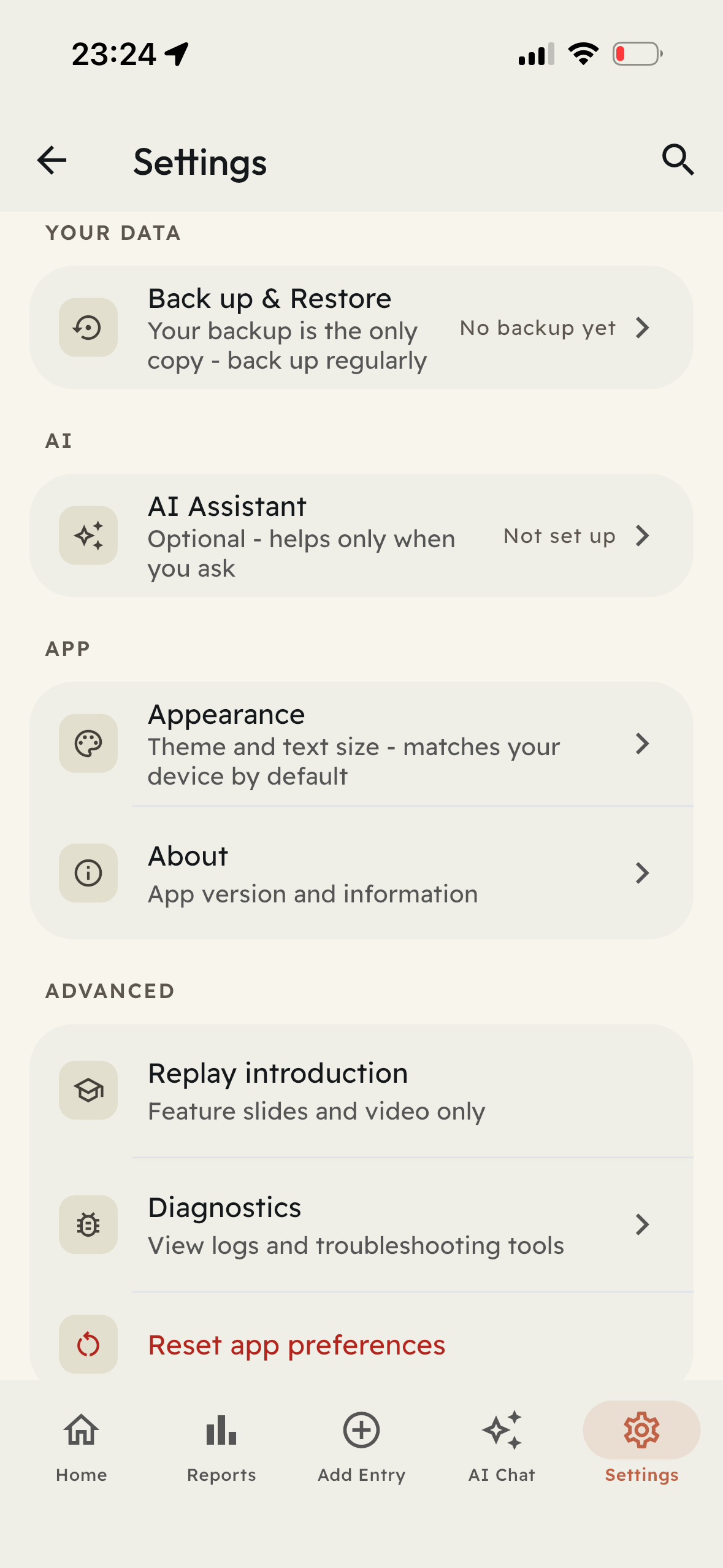
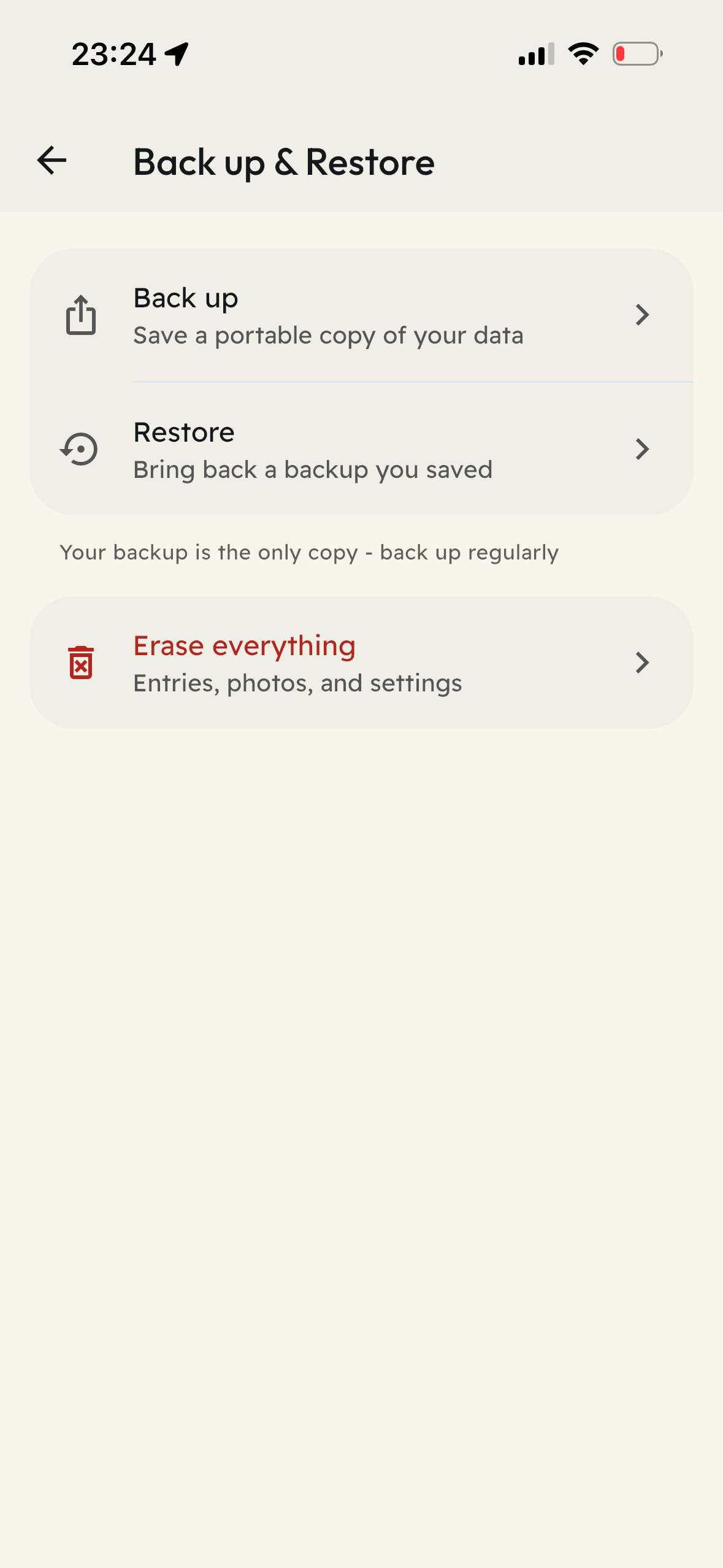
2. Choose the contents
Section titled “2. Choose the contents”Leave Include original media on to include photos and audio. Turn it off only if you want a smaller, data-only JSON export.
3. Create the file
Section titled “3. Create the file”Tap Back up now and read the security notice before continuing. When the export finishes, Backup ready shows the exported item summary and file size. Review any warnings about missing information or media.
4. Save or share it
Section titled “4. Save or share it”Choose Save to device to select a location, or Share to transfer the file using your phone's sharing options. Complete the save or transfer, then check that the file appears where you intended.
Keep another copy in a protected location away from the device. Back up before replacing your phone, uninstalling SynDiary, or erasing its data. Repeat regularly as you add information.
Restore a saved backup
Section titled “Restore a saved backup”- Open Settings → Back up & Restore → Restore.
- Select Choose backup file and choose a ZIP or JSON file previously exported from SynDiary.
- Wait for SynDiary to check the file, then review the summary.
- Choose Add to SynDiary and confirm.
- Keep the app open until the restore finishes. Review the results and check that the entries and media you need are available.
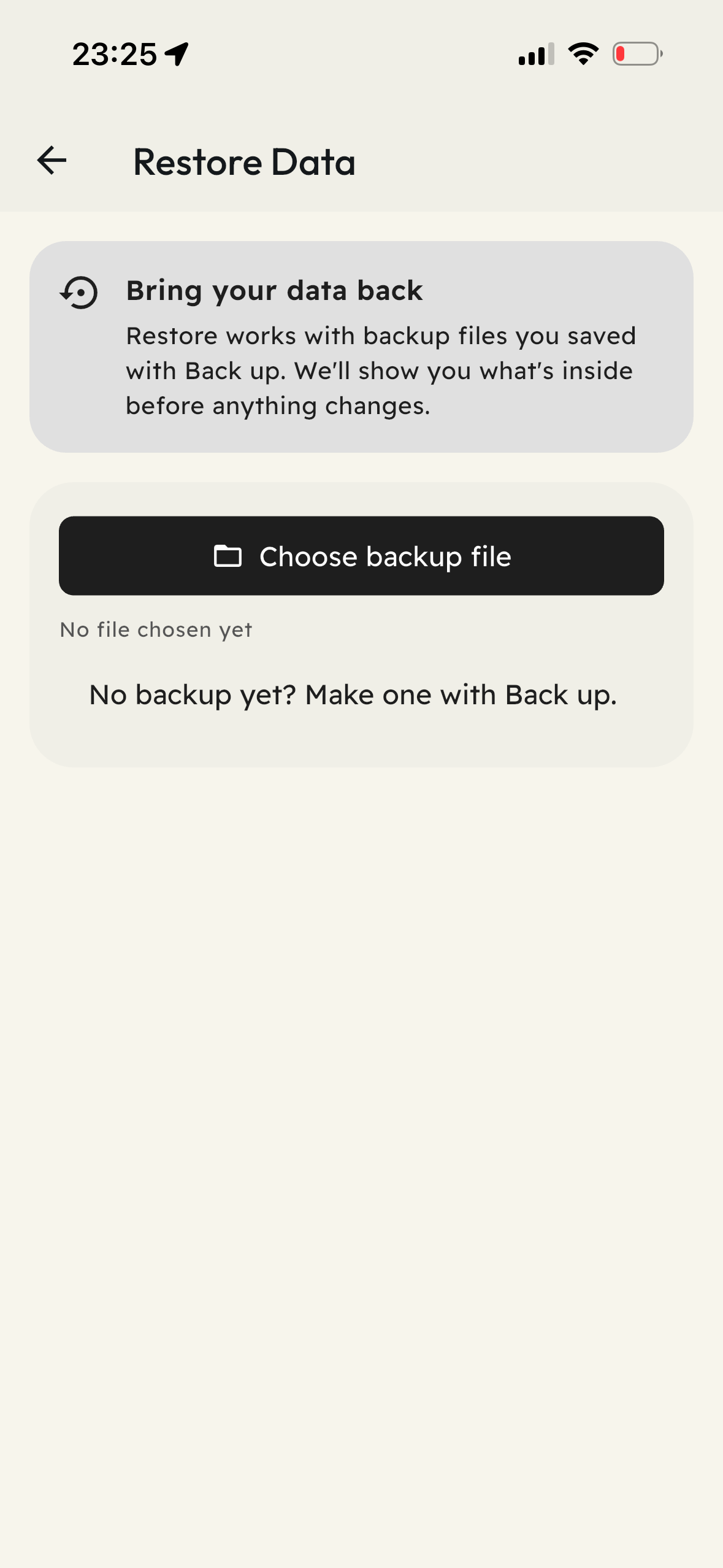
Restore accepts SynDiary backups. To import a Facebook or Instagram archive, use the separate archive import guide.
A JSON-only export does not contain original media. If photos or audio are missing, restore a ZIP backup that includes them or use a separate copy of those files.
Recovery codes and backup files
Section titled “Recovery codes and backup files”A recovery code can unlock existing encrypted storage if the device's key is lost. It does not contain your entries or recreate files lost with a phone. A backup file contains the data you exported, but does not include your recovery code. Keep both securely and separately from your phone if your storage uses a recovery code.
For a missing file, incomplete backup, or restore problem, see Backup and restore troubleshooting.